Showing posts with label CascadingDropDown. Show all posts

Tuesday, October 25, 2011

How to use CascadingDropDown with ASP.NET AJAX and Webservice


In this Tutorial we are using AJAX Control Toolkit and Webservice to perform CascadingDropDown.The CascadingDropDown control in the AJAX Control Toolkit extends a DropDownList control so that changes in one DropDownList loads associated values in another DropDownList. Here we are using Three CascadingDropDown Extenders.

Attributes are following for CascadingDropDown extenders:

ServicePath: URL of a web service delivering the list entries
ServiceMethod: Web method delivering the list entries
TargetControlID: ID of the dropdown list
Category: Category information that is submitted to the web method when called
PromptText: Text displayed when asynchronously loading list data from the server
ParentControlID: (optional) parent dropdown list that triggers loading of the current list

Step 1:
MSVS2008->New->Website(CascadingddAj)

Step 2:
Add database to it. and create tables in database named it CarsMake, CarsModel, CarsColor


Step 3:
CarsMake Table:

CarsModel Table:

CarsColor Table:
Step 4:
default.aspx page code:
In order to activate the functionality of ASP.NET AJAX and the Control Toolkit, the ScriptManager control must be put anywhere on the page (but within the <body> element)
Click on Image to Enlarge
Step 5:
web.config page code:
Connection String added here with name ConnectionString. that is used in WebService.cs file in syntax {string strconnection= ConfigurationManager.ConnectionString ('ConnectionString").ConnectionString }
For this Example, we assume that the instance of the SQL Server 2005 Express Edition is called SQLEXPRESS and resides on the same machine as the web server; this is also the default setup. If your setup differs, you have to adapt the connection information for the database.
Click on Image to Enlarge
Step 6:
WebService.cs
(Click on Image to enlarge it)
The [ScriptService] attribute is used, otherwise ASP.NET AJAX cannot create the JavaScript proxy to access the web methods from client-side script code.
Click on Image to Enlarge
View in Browser 

Monday, October 24, 2011

How to work with CascadingDropDown using ASP.NET AJAX ,Webservice and XML Schema with DataSet Classes


In this Tutorial we are using AJAX Control Toolkit , Webservice and XML Schema With DataSet Classes to perform CascadingDropDown.The CascadingDropDown control in the AJAX Control Toolkit extends a DropDownList control so that changes in one DropDownList loads associated values in another DropDownList. Here we are using Three CascadingDropDown Extenders.

Attributes are following for CascadingDropDown extenders:

ServicePath: URL of a web service delivering the list entries
ServiceMethod: Web method delivering the list entries
TargetControlID: ID of the dropdown list
Category: Category information that is submitted to the web method when called
PromptText: Text displayed when asynchronously loading list data from the server
ParentControlID: (optional) parent dropdown list that triggers loading of the current list

ADO.NET typed datasets are classes that are generated from XML Schemas (.xsd file). As changes are made to the schema file the definition of the dataset class changes as well. When working with XML Schemas and typed dataset representations in Visual Studio at design time there is essentially no difference. They are both .xsd files in the XML Designer, the difference being that typed datasets have an associated class file and a predefined document (or root) node that represents the encompassing dataset.


Step 1:
MSVS2008->New->Website(validationControls)
Step2:
Add database to it and create table in database named it Cars.
Cars Table:

Step 3:
Right click over website name and click on Add New Item(WebService.asmx)

Step 4:
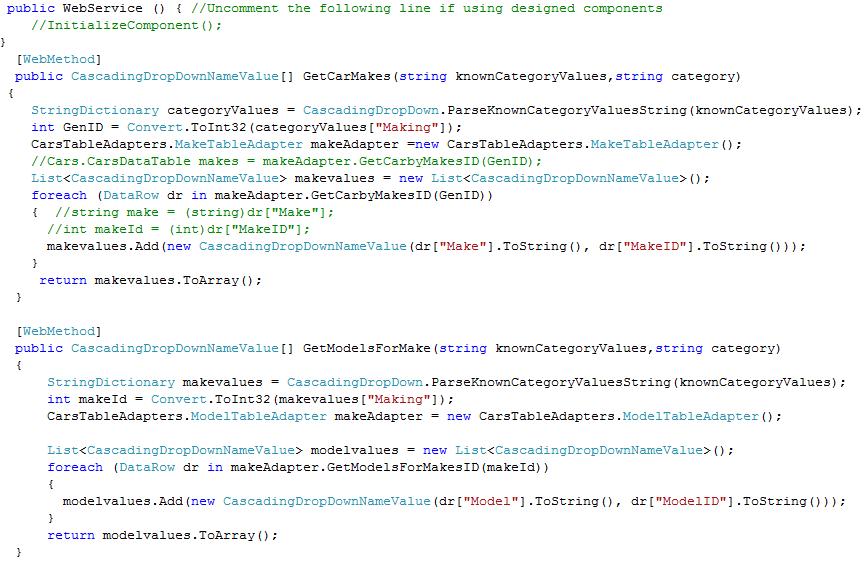
WebService.cs page code
(Click on Image to enlarge it)

Step 5:
Default.aspx page code
In order to activate the functionality of ASP.NET AJAX and the Control Toolkit, the ScriptManager control must be put anywhere on the page (but within the <body> element)
(Click on Image to enlarge it)

Step 6:
Right click over App_Code and click on Add New Item (DataSet.xsd)
give it to name Cars.xsd
Double click Cars.xsd
Right Click over opened space and select TableAdapter.
Step 7:
After clicking TableAdapter  this Wizard will open up 
Click on Next Button

Step 8:
Select use SQL statements by click on radio button.After that click on Next Button.

Step 9:
Enter particular SQl statement in this step. As i have used select sql command.
click on next button.

Step 10:
Uncheck Fill Data Table and give method name under return a DataTable(eg. GetCarbyMakesID)
click on next button.

Step 11:
This is a final window, click on Finish button.

Step 12:
By using same above process create other data table adapter.
You can reconfigure it by right clicking on already created methods and by selecting configure.

View in Browser:

Sunday, October 23, 2011

How to use simple CascadingDropDown with Database without ASP.NET AJAX and Webservice


In this tutorial we are performing CascadingDropDown without ASP.NET AJAX and Webservice. We are retrieving values of country and city from Database. Here we are loading country name in first DropDownList on Page_Load event and on selecting desired name of country in first DropDownList, onselectedindexchanged event get fired and second DropDownList get Loaded with city names corresponding to selected country name in first DropDownList.

Step 1: Create two Tables in your Database.mdf  as i have created here with name city and country.

country Table:


city Table:

Step 2:
Defaut.aspx page code
This code will also work , If we will not use UpdatePanel but UpdatePanel makes it work like Ajax.


Step 3:
Default.aspx.cs page code
(Click on Image to enlarge it)
Populating Values in First DropDownList

Populating Values in Second DropDownList

View in Browser:

Popular Posts